
What this page is
The list view shows the same items as the month view in date order, which is easier to scan than a grid.
Open Calendar month in Linxi, then Schedule list in the panel list beside it. It has its own address, /my/calendar/list, so it can be bookmarked or sent to somebody directly rather than described as a series of clicks.
A look at it
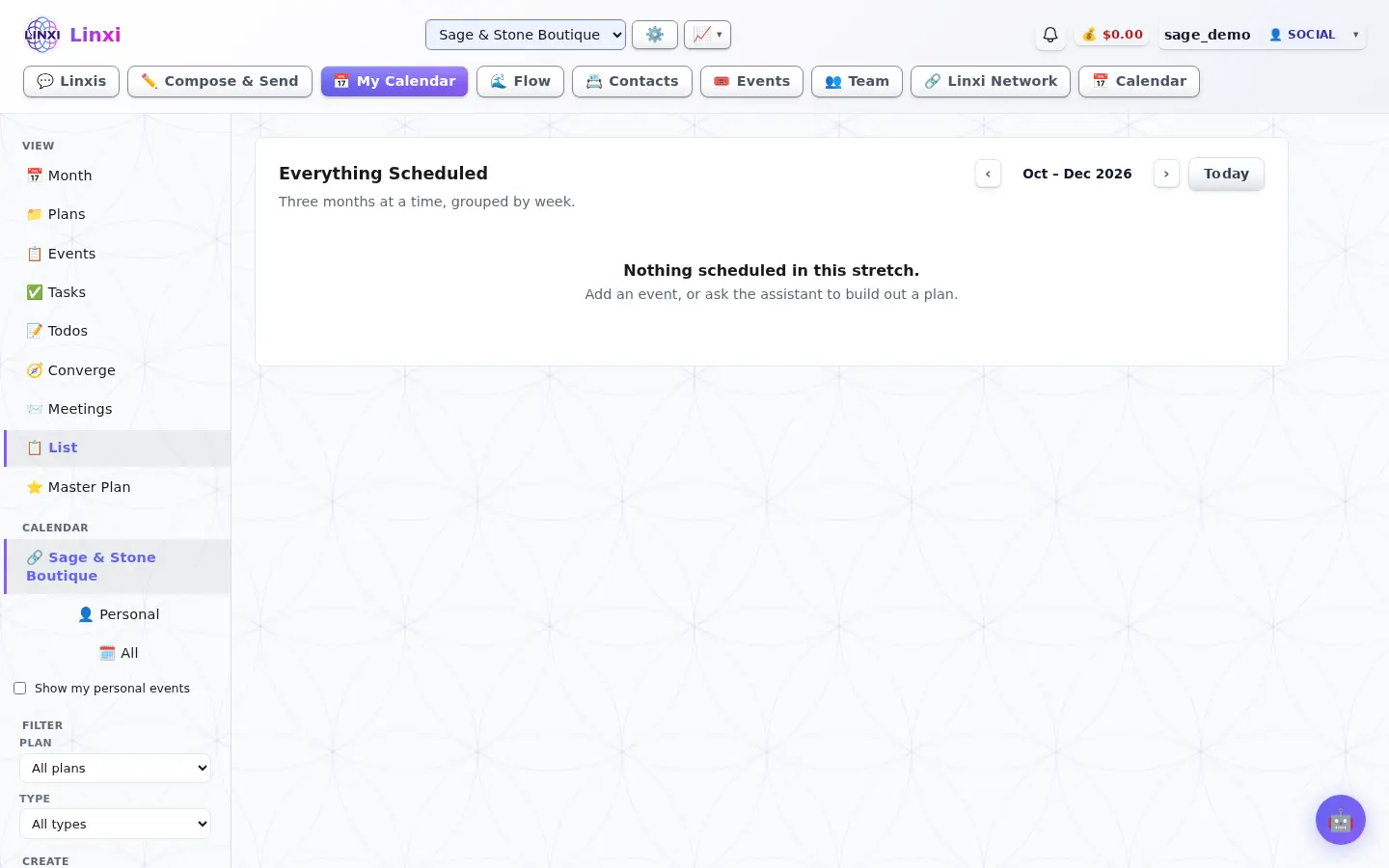
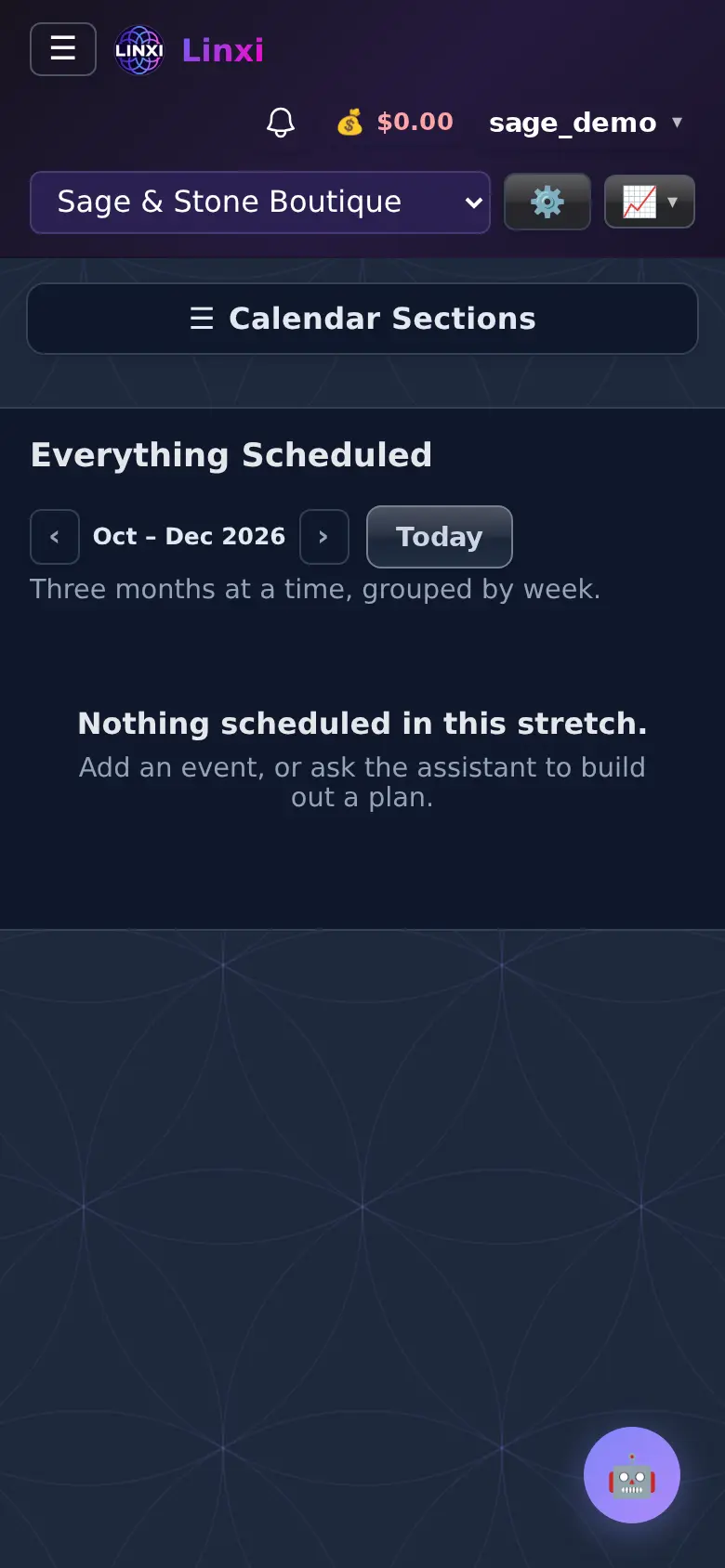
What is on the screen
- Everything Scheduled heading with previous, next and Today
- Items grouped by week over three months
- The calendar's Plan and Type filters and Create buttons in the side menu
What you can do here
- Scan the next few weeks in one column
- Find a date without clicking through months
Who uses it
Anyone using the calendar.
Also in Calendar
8 moreCalendar month
See your month at a glance with campaigns, goals, deadlines and check-ins, click a day to add something, and keep a quick todo list beside the calendar.
Calendar events
Add and edit the events on your calendar, twelve months at a time, apart from Google events and scheduled campaigns, which show only on Month and List.
Calendar tasks
List the dated tasks on this calendar with open ones first, give a task to anyone in the workspace, and let whoever owns it mark it done when it is finished.
Todos
Keep a list of things still to do with no day yet, tag them, rate their urgency, group them by tag or person, and schedule one when it is ready to be a task.
Converge
Rank every open todo you can see by urgency, ease, time and what it unblocks, then get a plan for the time you have and todos worth doing together.
Meetings
Answer meeting invitations, see the meetings you are running, start a new one, and turn on phone alerts so you are reminded before each meeting begins.
Marketing plans
Create marketing plans that each pair a goal with a timeframe, attach the events and milestones that belong to them, and track progress against them.
Master plan
Pick the one plan you work to, add its milestones and timeline events, and ask the assistant to review progress, suggest next steps or point out risks.