
What this page is
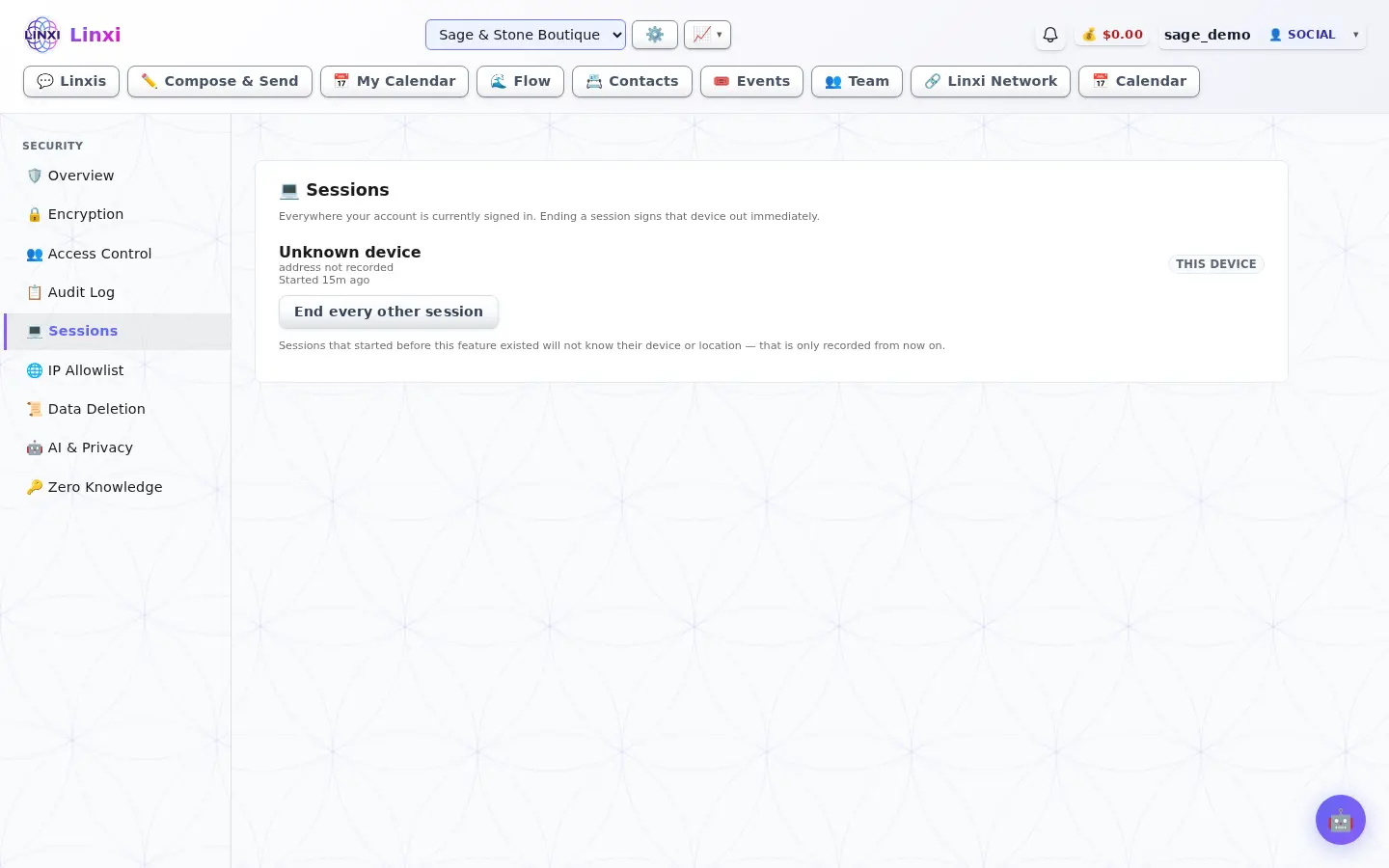
Sessions shows where your account is currently signed in. Ending a session signs that device out straight away.
Open Security overview in Linxi, then Signed-in sessions in the panel list beside it. It has its own address, /settings/security/sessions, so it can be bookmarked or sent to somebody directly rather than described as a series of clicks.
A look at it
What is on the screen
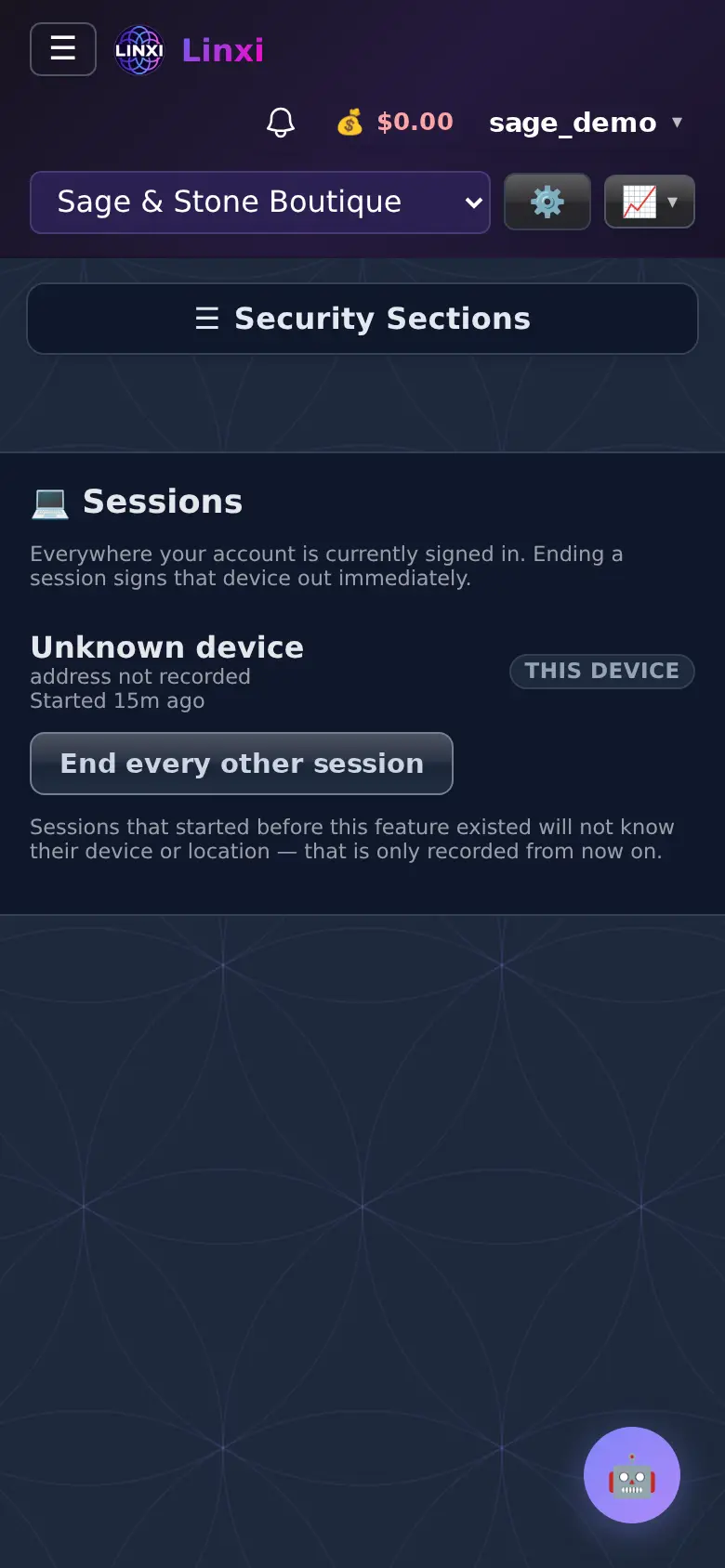
- Each session with browser, device, location, address and when it started
- This device label on the one you are using
- End session button on the others
- End every other session button
What you can do here
- Sign out a lost phone or a shared computer
- Check for sign-ins you do not recognise
Who uses it
Every signed-in user, for their own account.
Also in Linxi settings
12 moreWorkspace overview
See this workspace at a glance: its sending number, plan, members, contacts, message counts and which automations are switched on, and rename it.
Number settings
Buy a new texting number, connect one you already own on Twilio or Telnyx, test the connection, and see what the number costs and its registration state.
Setup progress
Follow each step from getting a phone number to full carrier approval, see which steps are done, waiting or locked, and start the next one from the list.
Brand profile
Enter your business identity once, including legal name, EIN, address and contacts, so registrations prefill, and upload documents or claim a verified handle.
Compliance profile
Create and submit the Twilio compliance profile that tells carriers who your business is, then refresh its review status or edit and resubmit after a rejection.
A2P 10DLC campaign
Register this workspace's A2P 10DLC campaign: describe your messages and samples, resubmit after a rejection, or adopt a brand or campaign you already have.
Emergency address
Register the street address that emergency services should be given for this workspace's number, with the name of the person or business at that location.
Auto-reply
Turn on an automatic text reply for incoming messages that nothing else has answered, write its wording, and choose to send it only outside business hours.
Business hours
Set the timezone and the opening and closing times for each day of the week, which the after-hours auto-reply option uses to decide when to answer.
Text keywords
Save custom keywords and the reply for each, so a text that is just that word gets your answer back, kept apart from the carrier's reserved STOP and HELP words.
Message templates
Save messages you send often under a name, mark the name, date and time to fill in with placeholders, and copy one to the clipboard when you write a message.
Domain health
Check how Gmail rates the domain your workspace email comes from, including reputation, spam complaints, delivery errors and whether SPF, DKIM and DMARC pass.